




















名刺サイズの超小型PC「ラズパイ」で遊ぶ(第61回)
ラズパイの時計をGPSモジュールと同期させる 実装編
前回はラズパイを使ってGPSの信号を受け取るところまで設定しました。今回はラズパイの内部時計としてGPSモジュールを使う方法について紹介します。
まずはGPSで受信しているデータから日付などの情報を得るようにします。「gpsdata.sh」というシェルスクリプトを使います。nanoを起動して以下の内容を記述しましょう。
#!/bin/sh
echo start at `/bin/date`
GPSDATE="`/usr/bin/gpspipe -w | /usr/bin/head -10 | /bin/grep TPV | /bin/sed -r 's/.*"time":"([^"]*)".*/1/' | /usr/bin/head -1`"
echo $GPSDATE
/bin/date -s "$GPSDATE"
echo end at `/bin/date`
gpsdata.sh
このスクリプトを実行してみましょう。
$ sudo bash gpsdata.sh
すると以下のように表示されます。
start at Mon 28 Feb 2022 01:34:53 PM JST
2022-02-28T04:34:53.000Z
Mon 28 Feb 2022 01:34:53 PM JST
end at Mon 28 Feb 2022 01:34:53 PM JST
これでラズパイの時刻がGPSユニットによって較正されるようになりました。
あとは定期的に較正されるように「crontab」を設定します。
$ crontab -e
としてcrontabを編集モードで起動します。このファイルの最後に、以下のように記述します。
* */1 * * * sudo bash /home/pi/gpsdata.sh > /home/pi/gpsdata.log 2>&1
crontab
ここでcrontabについておさらいしておきましょう。実行時間は分、時、日、月、曜日を指定できます。それぞれ半角を開けて記述します。時は24時間表記で、曜日は0~6までが日曜日~土曜日に割り当てられています。例えば毎週金曜日の12時に実行したい場合は、以下のように指定します。
0 12 * * 5 bash /home/pi/hogehoge.sh
今回は上記のように指定していますが「*/1」というのは「1時間おき」という意味になります。このため1時間おきにファイルを実行して時刻合わせをすることになります。ここでは時刻を合わせるとともに、「gpsdata.log」というログファイルを保存しています。
ラズパイにNTPを設定してGPSユニットと同期する
では次に、ラズパイをNTPサーバにしてPCの時刻を合わせられるようにしましょう。NTPサーバとは、正しい時刻を配信しているサーバのことで、Windowsでは「time.windows.com」がNTPサーバとして最初に登録されています。
まずはラズパイにNTPサーバをインストールします。以下のコマンドを入力します。
$ sudo apt install ntp
NTPサーバをインストールしたら、設定ファイル「ntp.conf」を開き、記述を追加します。
$ sudo nano /etc/ntp.conf
このファイルでは、先頭にある「server 0」から「server 3」までの冒頭に#を入れてコメントアウトし、
erver 127.127.28.0 minpoll 4
fudge 127.127.28.0 time1 0.183 refid GPS stratum 1
を最後に追加します。全体の内容は以下のようになります。
# /etc/ntp.conf, configuration for ntpd; see ntp.conf(5) for help
driftfile /var/lib/ntp/ntp.drift
# Leap seconds definition provided by tzdata
leapfile /usr/share/zoneinfo/leap-seconds.list
# Enable this if you want statistics to be logged.
#statsdir /var/log/ntpstats/
statistics loopstats peerstats clockstats
filegen loopstats file loopstats type day enable
filegen peerstats file peerstats type day enable
filegen clockstats file clockstats type day enable
# You do need to talk to an NTP server or two (or three).
#server ntp.your-provider.example
# pool.ntp.org maps to about 1000 low-stratum NTP servers.  Your server will
# pick a different set every time it starts up.  Please consider joining the
# pool:
#pool 0.debian.pool.ntp.org iburst #←ここをコメントアウト
#pool 1.debian.pool.ntp.org iburst #←ここをコメントアウト
#pool 2.debian.pool.ntp.org iburst #←ここをコメントアウト
#pool 3.debian.pool.ntp.org iburst #←ここをコメントアウト
# Access control configuration; see /usr/share/doc/ntp-doc/html/accopt.html for
# details.  The web page
# might also be helpful.
#
# Note that "restrict" applies to both servers and clients, so a configuration
# that might be intended to block requests from certain clients could also end
# up blocking replies from your own upstream servers.
# By default, exchange time with everybody, but don't allow configuration.
restrict -4 default kod notrap nomodify nopeer noquery limited
restrict -6 default kod notrap nomodify nopeer noquery limited
# Local users may interrogate the ntp server more closely.
restrict 127.0.0.1
restrict ::1
# Needed for adding pool entries
restrict source notrap nomodify noquery
# Clients from this (example!) subnet have unlimited access, but only if
# cryptographically authenticated.
#restrict 192.168.123.0 mask 255.255.255.0 notrust
# If you want to provide time to your local subnet, change the next line.
# (Again, the address is an example only.)
server 127.127.28.0 minpoll 4  #←ここを追記
fudge 127.127.28.0 refid GPS stratum 1  #←ここを追記
/etc/ntp.conf
Windows PCでラズパイのNTPを使う
では設定したNTPサーバを使って、Windows PCの時計を較正するようにしましょう。タスクバーいちばん右にある日時と時間が表示されているところを右クリックし、「日時を調整する」を選びます。下の方にスクロールすると「関連リンク」に「その他の時計」という項目があります。これをクリックします。
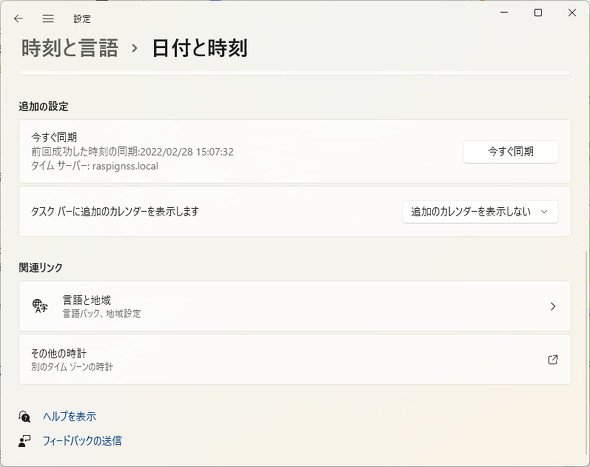 「関連リンク」に「その他の時計」という項目をクリック
「日付と時刻」が表示されたら、「インターネット時刻」のタブを選んで「設定の変更」を選びます。
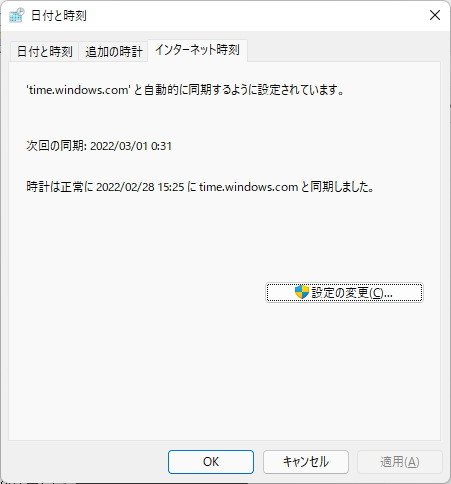 「インターネット時刻」のタブを選んで「設定の変更」を選ぶ
「サーバー」の箇所にラズパイのサーバ名を入れます。デフォルトだと「raspberrypi.local」です。入力したら「今すぐ更新」をクリックして更新したあと、「OK」で画面を閉じます。これで設定は終了です。
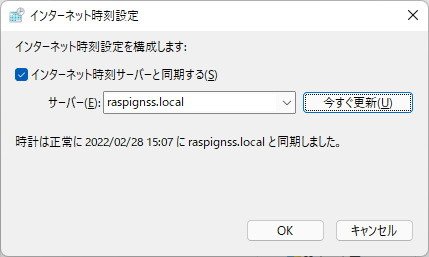 「サーバー」の箇所にラズパイのサーバ名を入れる
Copyright © ITmedia, Inc. All Rights Reserved.


名刺サイズの超小型PC「ラズパイ」で遊ぶ
今やスマートフォンアプリで何でも完結できてしまう時代。しかし、一から自分の手でデバイスを作り上げ、試行錯誤しながらアイデアを具現化する楽しさは格別です。この連載では、テーマや用途にあわせてマイクロコンピュータ(マイコン)と呼ばれる名刺サイズの超小型PC「Raspberry Pi」(通称ラズパイ)の活用方法から具体的な工作手順までを紹介します。
この記事の著者

関連記事
こんなメディアも見られています
ITmedia NEWSに関連する情報をお探しであれば、こちらのメディアもお役に立てるかもしれません。




SpecialPR
本日の新着記事
アクセスランキング
-
1
肖像画をChatGPTに読み込ませて出力→加工して納品 委託先による著作権侵害で、小学館「サライ.jp」が謝罪
-
2
経営「AIでラクして早く帰って」→社員「帰らない」 工数最大9割減のDeNAも悩むAI効率化の壁
-
3
新作「鬼武者」にハマったマンガ家が熱弁する、他とは違う“パリィ”の魅力とは?
-
4
農水省の“クソダサ”ポスター話題 「AIよりよっぽど良い」の声も 担当者に狙いを聞いた
-
5
“自動で耳コピ”アプリ、ヤマハが無料公開 音源読み込み→3分でピアノ譜に
-
6
「POPOPO」サービス終了 開始から約半年
-
7
「iPhone Duo」実機をマニアック目線でチェック かな入力の分割不可、ケース装着時だけの隠し設定など
-
8
「食欲が削られる」――AIで作られた“気色の悪い飲食店メニュー”がXで物議 「実物を見たい」の声も
-
9
「不気味の谷を越えた」? 中国の美男美女型ロボット「U1」話題 286万円から
-
10
東京ゲームショウと生成AI ゲームの祭典で商談見込むベンダーたち
ITmedia NEWS SNS
 @itmedia_newsをフォロー
インフォメーション
注目情報をチェック
ITmediaNEWSをフォロー
あなたにおすすめの記事PR